
Use the onscreen keyboard
This page is for devices without a physical keyboard.
The onscreen keyboard appears when you tap a text field.
- Shift: Tap for a capital letter (learn how).
- 123: Tap for numbers and symbols, and ABC to go back (learn how).
- Enter: Tap to start a new line or accept what you entered. Some applications give this key another name.
To change the layout, open Text Assist on the Prefs tab.
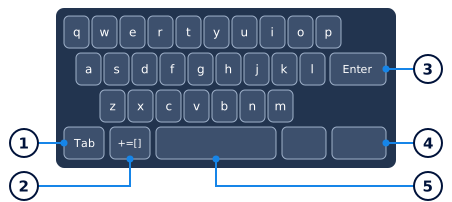
- Tab: Tap to move to the next field.
- Symbols: Tap +=[] for the symbol keyboard, and ABC to go back.
- Enter: Tap to start a new line or accept what you entered. Some applications give this key another name.
- Hide keyboard: Tap to hide the keyboard. To resize the keys, tap and hold, and then tap a size.
- Space
To change the layout, open Text Assist on the Prefs tab.
Checked against the LuneOS code and installed apps. Nobody has tried these steps by hand yet, so tell us if something differs.