
Touchscreen - The Launcher
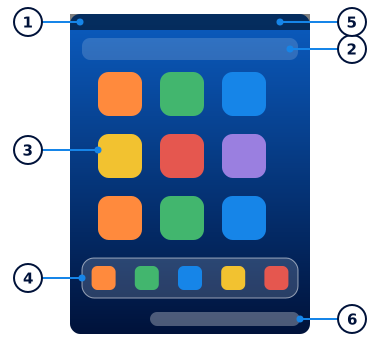
- Status bar: Says Launcher in the upper-left corner.
- Tabs: Apps, Downloads, Favorites and Prefs, plus Android if your device runs Android applications. Tap a tab, or swipe left or right, to change tabs. An arrow shows that there are more tabs that way.
- Icons: Tap an icon to open the application.
- Quick Launch: The same bar as in Card view.
- System icons: Show the battery, wireless connections and more. Tap them to open the system menu.
- Notifications: Appear at the bottom of the screen, above the gesture area. Tap them to see the details.
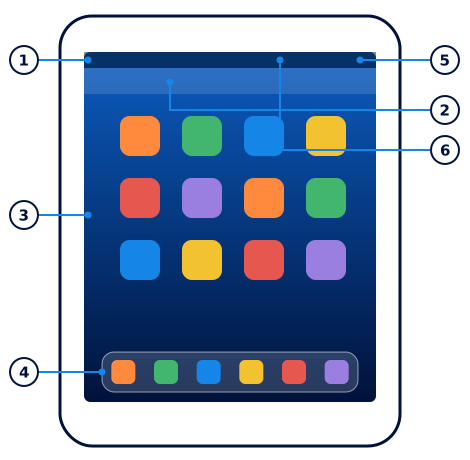
- Status bar: Says Launcher in the upper-left corner.
- Tabs: Apps, Downloads, Favorites and Prefs, plus Android if your device runs Android applications. Tap a tab, or swipe left or right, to change tabs.
- Icons: Tap an icon to open the application.
- Quick Launch: The same bar as in Card view.
- System icons: Show the battery, wireless connections and more. Tap them to open the system menu.
- Notifications: Appear in the status bar. Tap them to see the details.
Checked against the LuneOS code and installed apps. Nobody has tried these steps by hand yet, so tell us if something differs.