
Getting started
Buttons and gesture areaLuneOS runs on many different devices, so buttons and connectors are in different places. These parts work the same on all of them: Touchscreen: Tap, flick and make other gestures directly on the screShut down your devicePress and hold the power button. Open the system menu and tap Power. Tap Shut Down. Shutting down turns off the screen and all wireless services. Do this when you won't use your device for a long timeCopy files between your device and your computerConnect your device to your computer with the USB cable. On your device, tap File Transfer in USB Connected. On your computer, open the device. It shows up as a media device. Drag files in either direDisplay Card view (minimize an application)When an application fills the screen, tap the gesture area to see Card view. You can also flick up on the gesture area. Some applications cover the whole screen and hide the gesture area. Flick up froOpen an application in the LauncherOpen the Launcher. Swipe left or right, or tap a tab, to find the application. The Prefs tab holds the settings applications. Flick up or down to see all the icons on a tab. Tap the icon.Open the application menuIn an application, do one of the following:
- Tap the application's name in the upper-left corner of the screen.
- Flick down from the top edge of the screen, over the application's name. Tap a Open the system menuDo one of the following: Tap the icons in the upper-right corner of the screen. Flick down from the top edge of the screen, at the right side. To close the system menu, tap outside it. See Use the sysGo up one level in an app (back gesture)The back gesture is a quick flick from right to left in the gesture area. It takes you up one level in an application. For example, make the back gesture while reading an email message to return to thDial by contact name using Just TypeIn Card view, tap Just type... and enter a name or initials. Under Contacts, tap the arrow at the right of the contact to open its entries. If only one contact matches, they open by themselves. Tap thSave informationMost applications save as you go, so there's no save button. For example, Memos keeps what you type without being asked. On a screen with a Done or Save button, tap it to keep your changes. If you're Use the onscreen keyboardThe onscreen keyboard appears when you tap a text field. Shift: Tap for a capital letter ( learn how). 123: Tap for numbers and symbols, and ABC to go back ( learn how). Enter: Tap to start a new line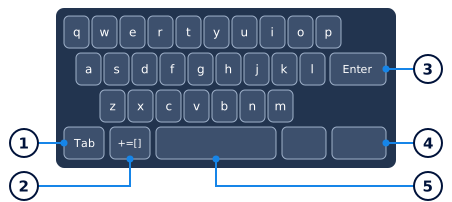 Use the system menuOpen the system menu, and then do any of the following: See the date and the Battery level at the top. To adjust the screen brightness: Drag the slider. To adjust the volume: Drag the slider. To choosConnect to a new open networkOpen Wi-Fi. Make sure Wi-Fi is on ( learn how). Under Choose a network, tap the network name. Open networks have no padlock beside their name. You can also open the system menu, tap Wi-Fi, and tap the
Use the system menuOpen the system menu, and then do any of the following: See the date and the Battery level at the top. To adjust the screen brightness: Drag the slider. To adjust the volume: Drag the slider. To choosConnect to a new open networkOpen Wi-Fi. Make sure Wi-Fi is on ( learn how). Under Choose a network, tap the network name. Open networks have no padlock beside their name. You can also open the system menu, tap Wi-Fi, and tap the Basics
 Phone
Phone Just Type
 Launcher
 Accounts
 Exhibition
 Print Manager
 Android Applications
 Email
Email Messaging
 Chat Apps
 Video Calls
 Calendar
 Contacts
 Tasks
Tasks Clock
Clock Authenticator
 Weather
 Photos
 Music
Music Videos
 Camera
 Sound Recorder
 PDF
PDF Memos
Memos Calculator
 Documents
 LuneOS Explorer
 Sounds & Ringtones
 Screen & Lock
 Text Assist
 Date & Time
 Regional Settings
 Notifications
 Appearance
 Security
 Tweaks
 Web
Web Location Services
 Maps
Maps Wi-Fi
Wi-Fi Tethering
 VPN
VPN Bluetooth
 Network
 Device Info
 Backup
 Software Manager
 System Updates
 SIM Toolkit
 Storage
 Utilities